
A MAC APP BY 90 LEADS · NOW IN BETA
Heron: AI and SEO Website Crawler
Heron crawls a website from your Mac and tells you, in plain words, what is broken, what is holding it back in search, and whether AI assistants can read it. It is built by 90 Leads, a marketing agency, for the audits we run every week.
Heron is in beta and headed for the Mac App Store. Want to try it? Email dick@90leads.com to ask for a spot in the beta. You’ll need a Mac.
What Heron does
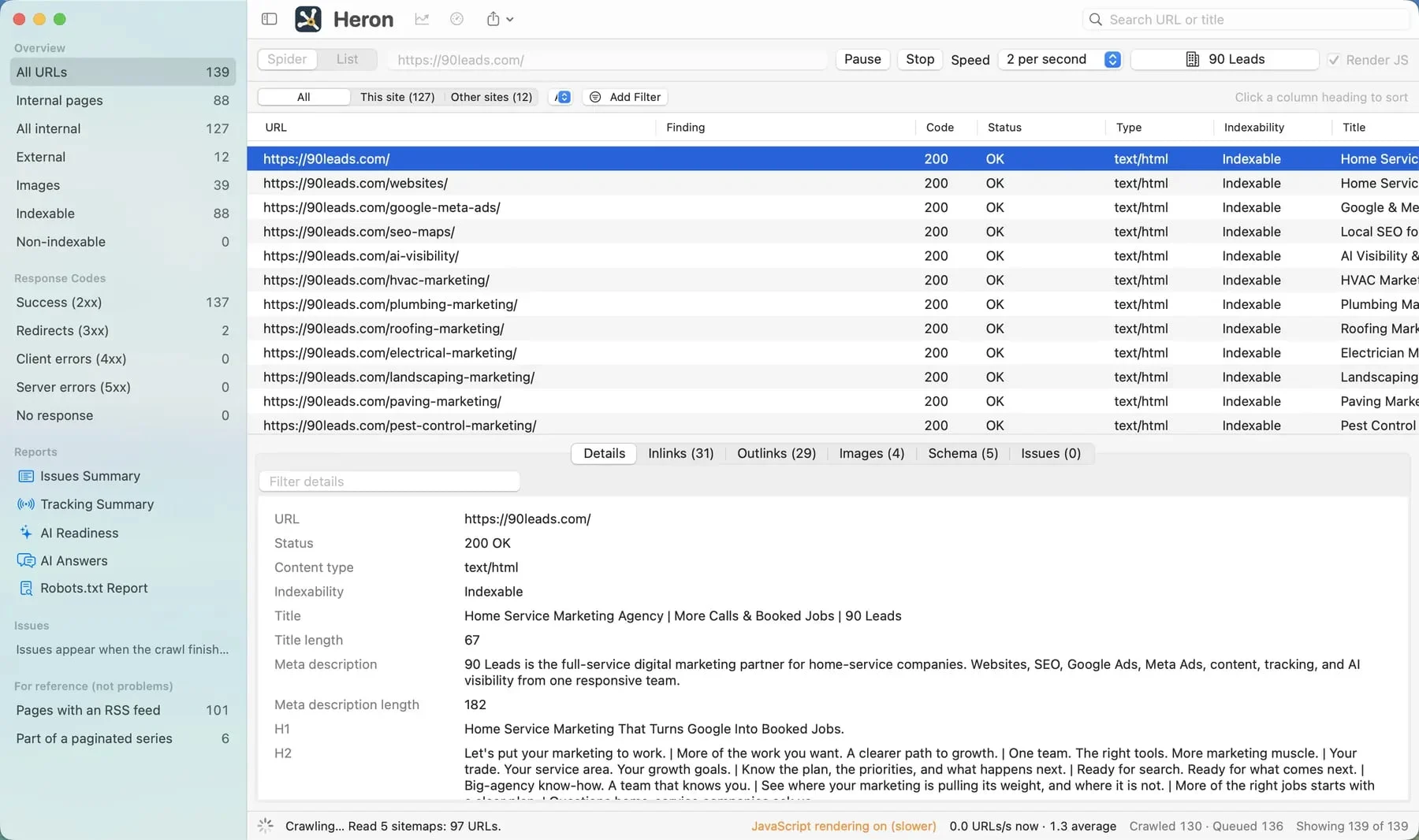
Finds what is broken
Broken pages and links, redirect chains, missing titles and descriptions, oversized images, duplicate content, sitemap and robots.txt problems.
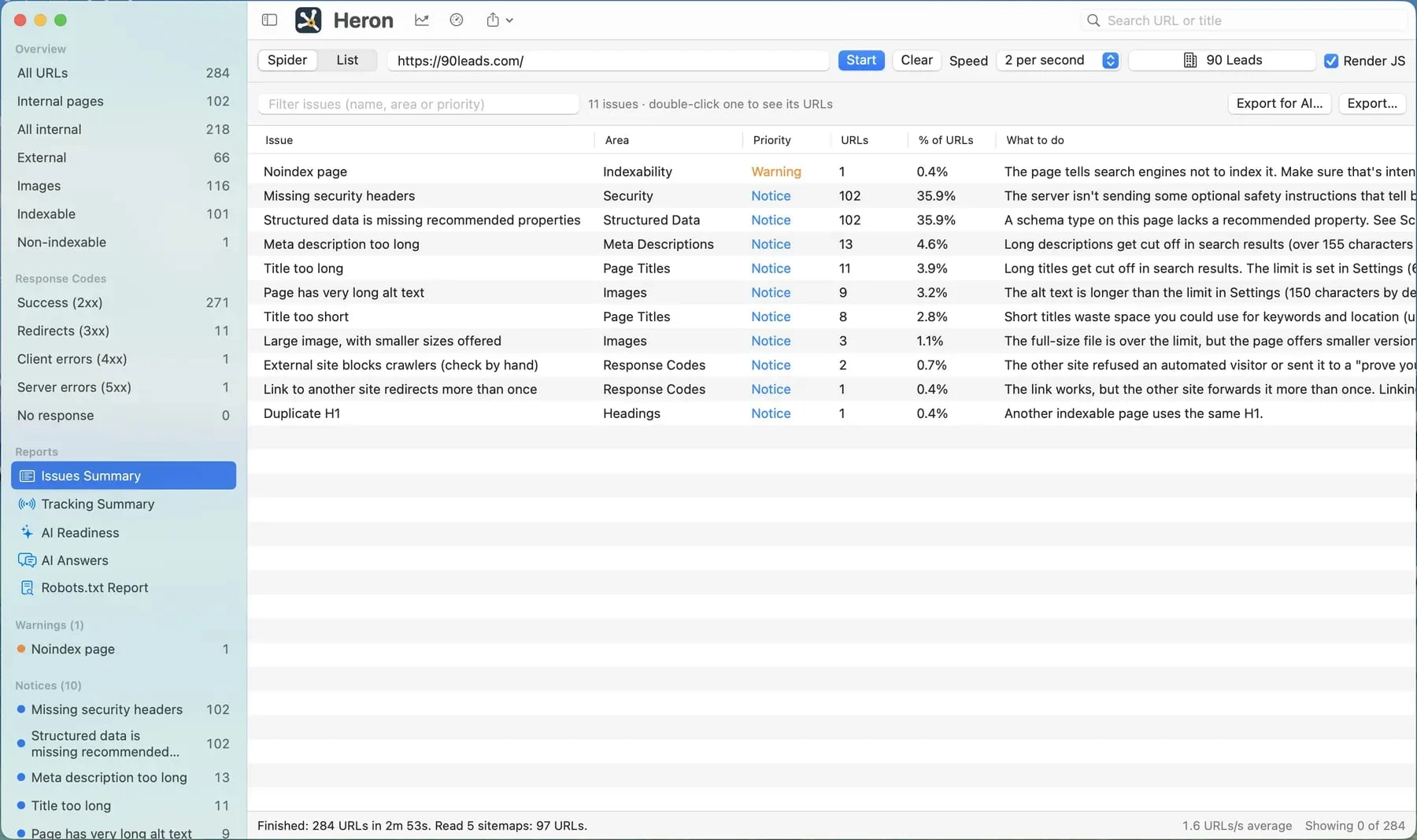
Explains every finding
Each issue says what it means, what exactly was found on each page, and what to do about it. Uncertain findings are marked as such, not reported as errors.
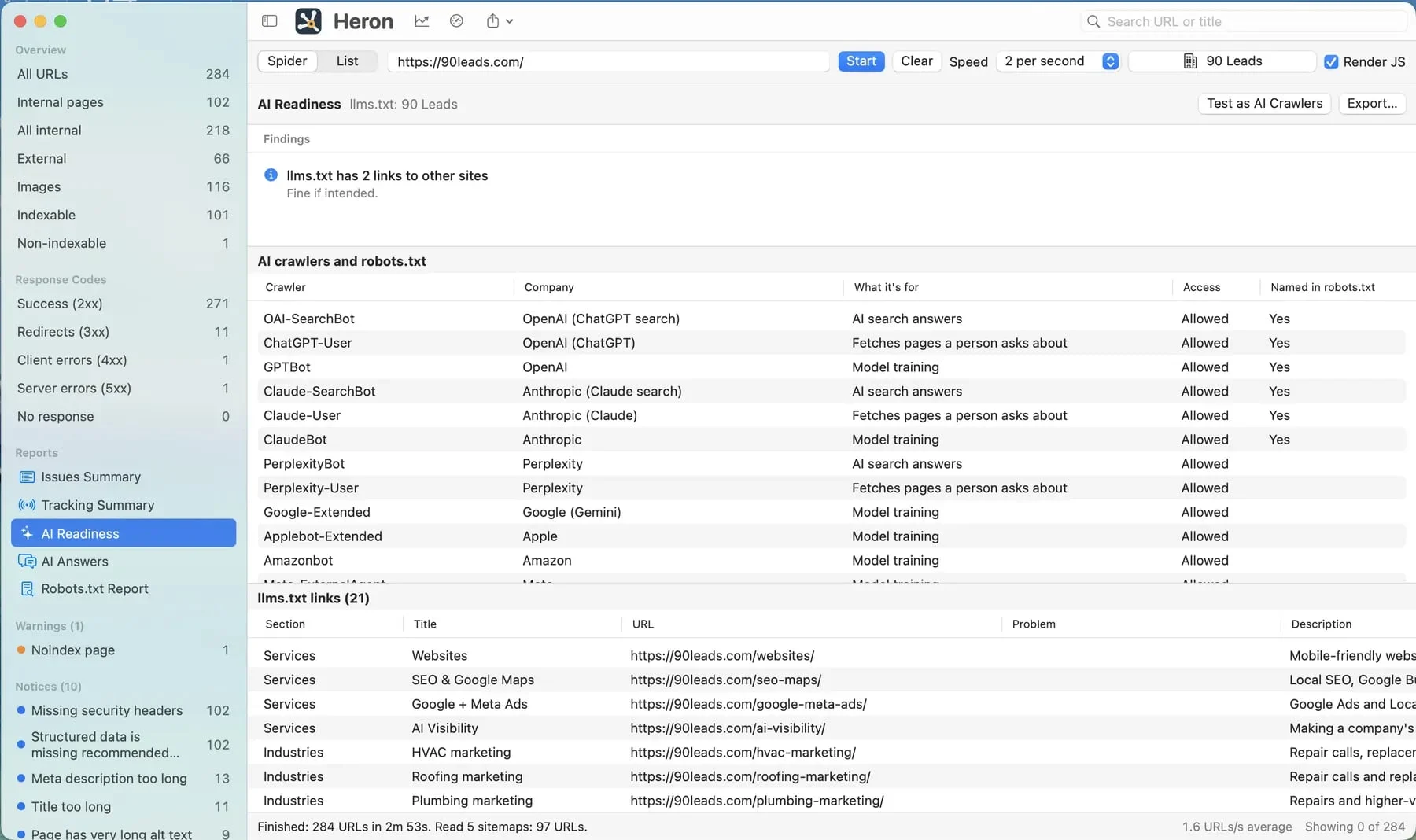
Checks AI readiness
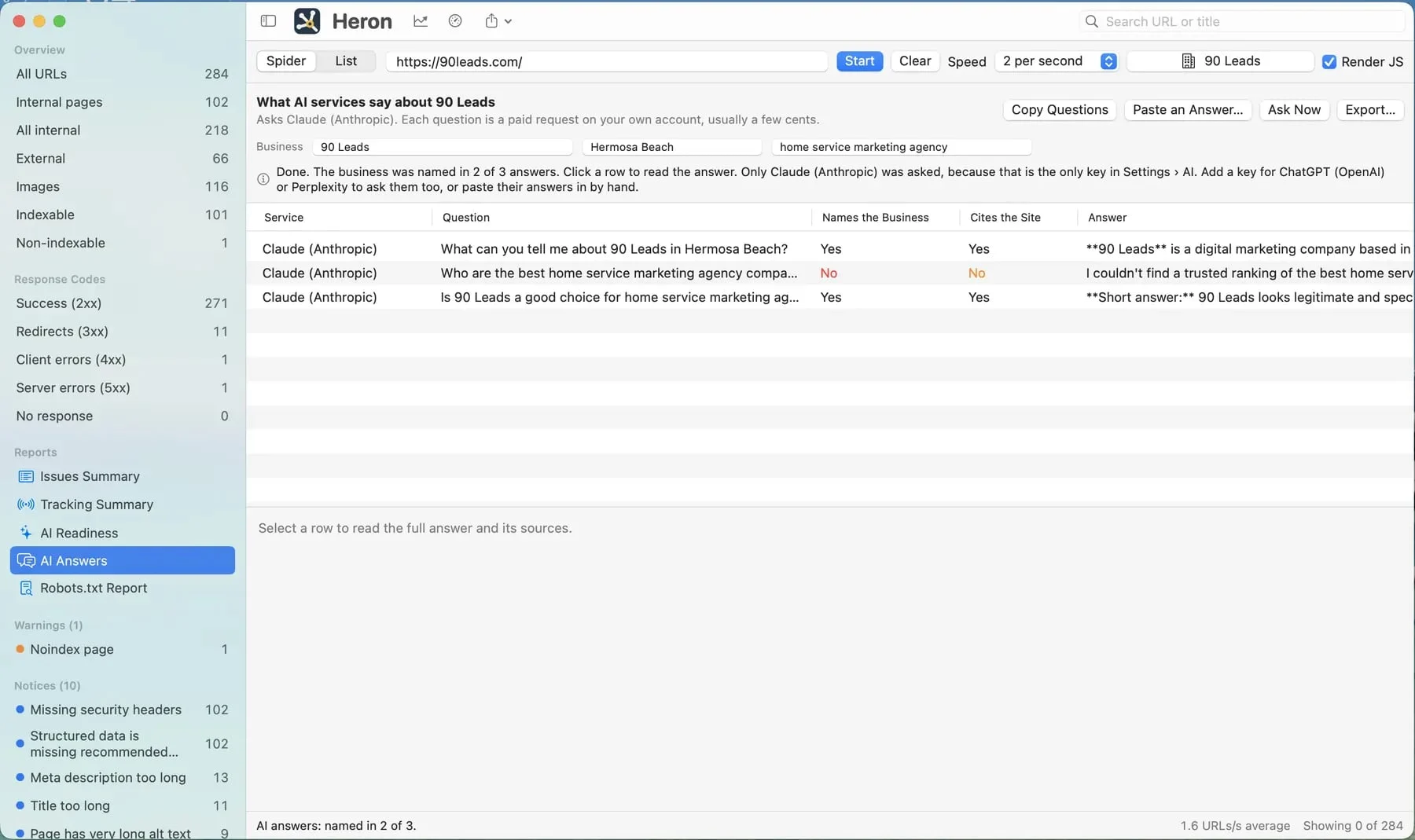
Whether AI crawlers can reach the site, whether the content is readable without JavaScript, and what AI assistants say when asked about the business.
Understands local businesses
Phone numbers that can’t be tapped to call, missing business markup, and details that don’t match from page to page.
Makes client-ready reports
White-label PDF and HTML reports and a ready-to-send email, with your logo and only the findings you choose.
Works with AI assistants
Export an audit for any AI assistant, or let an assistant on your Mac run crawls and read the results itself.
Every feature, in detail
Heron is still in beta, so this list grows. This is what the app does today.
Crawling
- Two ways to crawl: Spider mode starts at one address and follows the site’s links; List mode checks a list of URLs you paste in.
- JavaScript rendering: load each page in a real browser engine first, so content and tags added by scripts are seen. Render at desktop size or at phone size.
- Speed control: set how many URLs are requested per second, how many at once and any extra delay, and pause, resume or stop at any time.
- Crawl as: choose the user agent Heron identifies itself with, including Googlebot and AI crawlers such as GPTBot, or type your own.
- Robots.txt: obey it, ignore it, or test the crawl against a robots.txt you paste in before it goes live.
- Scope: include subdomains or not, follow nofollow links or not, stay inside the start address’s folder, and only crawl (or never crawl) URLs matching patterns you give.
- URL handling: ignore query strings, convert URLs to lowercase, and rewrite URLs with your own rules.
- XML sitemaps: found automatically or at an address you give, read, and compared with what the crawl finds.
- What gets checked: pages, images, links to other sites and, if you want, CSS and JavaScript files.
- Limits: cap the number of URLs, how deep the crawl goes and how long to wait for a slow page.
- Protected sites: crawl sites behind a browser password box, or sign in through a login page first and crawl as that signed-in visitor.
- Cookies and proxy: accept cookies or not, and send requests through a proxy.
- Redirects: followed up to five in a row; chains and loops are reported once, at their start.
- Careful with bad responses: quick failures are retried, slow pages are tested a second time before being called slow, and very large or non-text downloads are cut short.
Working with a crawl
- Crawl Again: re-check just the URLs you select, or every URL with a given issue, after a fix. No need to re-crawl the whole site.
- Your last crawl is kept: Heron saves it automatically and reopens it at launch. Crawls can also be saved to a file and opened later.
- Compare two crawls: compare against a saved crawl and list the URLs that have been removed.
- Page details: for any URL, its details, the pages that link to it, the links it contains, its images, its structured data and its issues.
- Filters: this site or other sites, file type, response code, indexable or not, search by URL or title, and your own filter rules.
- Segments: save a set of filters and get a live count for it in the sidebar.
- Sort by any column, and add columns for the data you extract.
- Custom extraction and search: pull any element out of every page, or find every page that contains (or lacks) a piece of text or code.
- Save a copy of the site: download the pages, the images they show, and linked PDFs and other files into a folder laid out like the site.
About 120 checks
- Response codes: broken pages and server errors on your site, kept apart from links to other sites that are broken, dead, need a login, or simply block crawlers.
- Redirects: chains, loops, temporary redirects, and redirects that land somewhere unrelated.
- Indexability: noindex pages, canonical problems, pages blocked by robots.txt, meta refresh, and tag or author archives and thank-you pages that can appear in search.
- Page titles and meta descriptions: missing, duplicate, multiple, too long, too short, and descriptions that look cut off or garbled.
- Headings: missing, duplicate and multiple H1s.
- Content: thin pages, exact duplicates and near-duplicates, missing mobile viewport or language tags.
- Images: broken and oversized images, missing or very long alt text, and whether smaller sizes are offered to phones.
- Links: orphan pages, pages with a single link pointing to them, deep pages, and links to broken or redirected pages.
- URLs: length, capitals, underscores, spaces, parameters and other address problems.
- Sitemaps: no sitemap, pages missing from it, and entries that shouldn’t be in it.
- Pagination: broken pagination links, paginated pages set to noindex or canonicalised away, and pages missing rel=next or rel=prev.
- Hreflang: invalid language codes, missing return links, missing self-reference or x-default, and broken targets.
- Structured data: schema that can’t be read, missing required and recommended properties, and malformed values, with a Schema tab for every page.
- Local SEO: phone numbers that can’t be tapped to call, missing LocalBusiness markup, and phone numbers that look like a typo of the business’s own.
- Tracking: no analytics at all, pages missing a tag the rest of the site has, two IDs for one tool, and retired tags.
- AI: AI search crawlers blocked by robots.txt or by the server, AI crawlers served different content, content that needs JavaScript to be read, and llms.txt problems.
- Security: insecure pages, mixed content, and missing security headers, explained in plain words.
- Feeds, robots.txt and Google data: feed and robots.txt problems, pages that get search clicks but have a problem, and indexable pages with no impressions.
- Outdated practices: AMP, meta keywords and similar leftovers are reported for cleanup, not treated as things to add.
Findings you can trust
- Three priorities: Errors, Warnings and Notices, each with what it means and what to do.
- A Finding column says what exactly was found on each page, not just that the page has the issue.
- Facts are not issues: things worth knowing that aren’t wrong, such as pages with an RSS feed, are listed “for reference” and never counted as problems.
- Sitewide findings are reported once: a broken link in the footer is one finding, not one per page.
- Sensible exceptions: page 2 of a list isn’t flagged for its title, thank-you pages get the right advice, decorative images aren’t “missing alt text”, and titles a few characters over the limit aren’t reported.
- Ignore what doesn’t apply: ignore a whole issue or single URLs for a site. Ignored findings stay out of reports and exports and can be restored.
- Your thresholds: set your own limits for title, description and alt-text length, image size, thin content and page speed, and switch local-business checks on, off or automatic.
Built-in reports
- Issues Summary: every issue with its area, priority, number of URLs and what to do. Double-click to see the URLs.
- Tracking Summary: every analytics and advertising tag found, its ID, how many pages carry it and which pages are missing it; events written into page code; and a reader that opens each Google Tag Manager container to list what it loads.
- AI Readiness: which AI crawlers (OpenAI, Anthropic, Perplexity, Google, Apple, Amazon, Meta and others) robots.txt allows, what each one is for, a check of the site’s llms.txt and its links, and “Test as AI Crawlers”, which requests the site as each crawler to see what it is actually served.
- AI Answers: asks ChatGPT, Claude and Perplexity what they know about the business and who they recommend, then shows whether each answer names the business and cites the site. Uses your own API keys, or a free copy-and-paste route with no keys.
- Robots.txt Report: the file’s rules, who they apply to, and problems with it.
Google data (optional)
- Search Console: clicks, impressions and average position next to every crawled page, plus pages Google knows about that the crawl didn’t reach.
- Google Analytics: sessions for every crawled page.
- PageSpeed Insights: Google’s speed scores for selected pages or all indexable pages.
- Sign in with one button, read-only. See below for exactly how the data is used.
Client reports and exports
- White-label client report as PDF or HTML, with your logo, name and accent color, and only the areas and findings you choose. Tracking, AI visibility and robots.txt sections are optional.
- Client email: copy a formatted email for Gmail or Outlook, open a new Mail draft with the report attached, or save HTML for a newsletter tool. The wording is yours to edit.
- Spreadsheets: the current view, all URLs, the issue summary, issues URL by URL, images, all links, the tracking summary, non-clickable phone numbers, AI readiness and the robots.txt report.
- Send to a destination: send the results to a web address of your own.
Working with AI assistants
- Export for AI: one compact file written for an AI assistant to read, or Copy for AI to paste straight into a chat. Each finding appears once, with the pages it affects.
- Let an assistant run Heron: add Heron to Claude on your Mac in one click (or to Claude Code with one command). The assistant can then crawl a site, re-check URLs after a fix, list the issues, open any page’s details and write up the results.
Made for local businesses
- Business details filled in for you: name, phone, city and what the business does are read from the site after each crawl, kept per site, and editable.
- Phone checks look only at the business’s own numbers, so a supplier’s number in a blog post isn’t flagged.
A real Mac app
- Native on macOS, with a searchable help window that covers every feature.
- No account with us, and no usage statistics sent to us.
How Heron uses Google data
Connecting a Google account is optional. If you sign in with Google, Heron asks for read-only access to your Google Search Console and Google Analytics data, and uses it for one purpose: to show search and traffic figures next to the pages it has crawled.
- What it reads: the Search Console and Analytics properties your account can see, and for the site you crawled, each page’s clicks, impressions and average position (Search Console) and sessions (Analytics).
- Why: so you can see which pages with problems actually get traffic, and find pages Google knows about that the crawl did not reach.
- Where it goes: nowhere. The figures and the sign-in are stored on your Mac. They are not sent to 90 Leads, not used for advertising, not used to train AI models and not sold.
- Your control: sign out in Heron at any time, or remove Heron’s access in your Google Account.
Heron’s use of information received from Google APIs adheres to the Google API Services User Data Policy, including the Limited Use requirements. The full details are in our Privacy Policy.
Your data stays on your Mac
Crawls run from your computer and results are saved on your computer. Heron has no account with us and sends us no usage statistics. See the Privacy Policy and Terms of Service.
Join the beta
We’re looking for people who run website audits, at agencies, as freelancers or for their own company’s site, to try Heron and tell us where it gets things wrong. Email dick@90leads.com to ask for a spot.
About 90 Leads
90 Leads is a digital marketing agency for home service businesses, based in Hermosa Beach, California. Contact: sales@90leads.com · 310-929-0636.